
Filmora 9 Mac Guide: Full Version Setup, Workflow, and Optimization
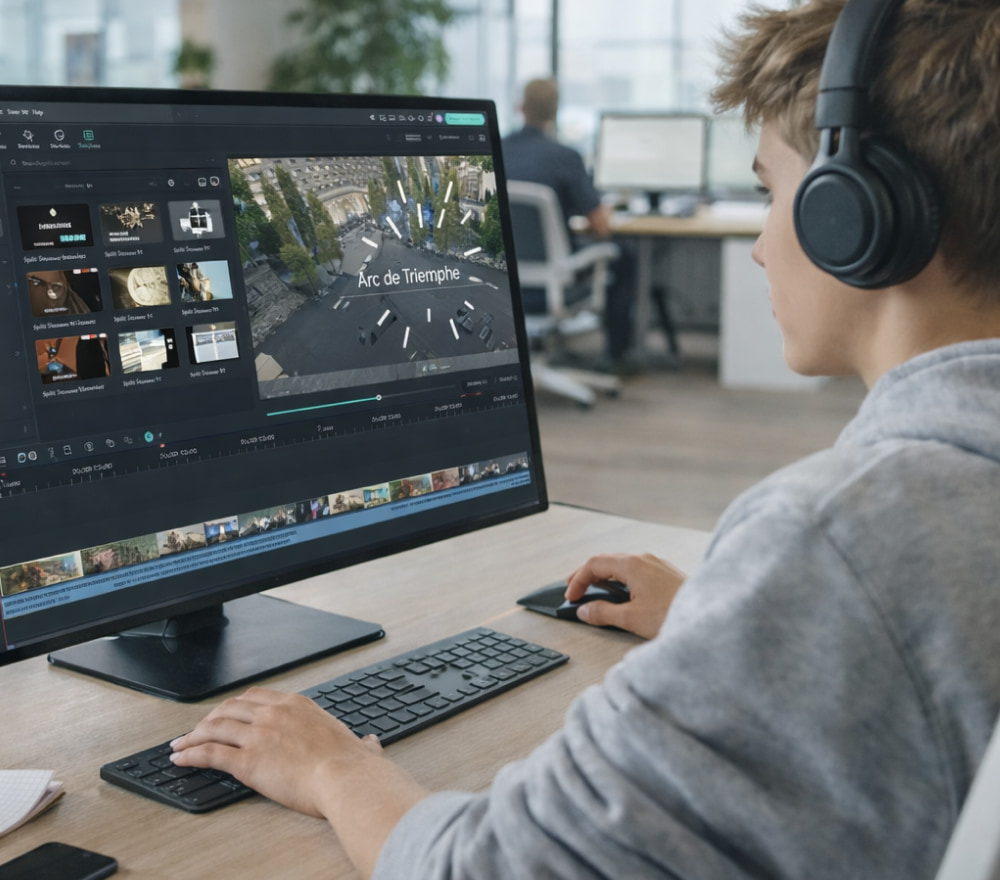
Download Filmora 9 for Windows 10 PC & Android
InstallIf you edit videos for YouTube, school, client work, or family memories, a lightweight editor with a clear timeline can make the process far less stressful. This guide focuses on getting a stable setup, learning the most useful tools first, and avoiding the most common hiccups people run into on Apple laptops and desktops.
What to Expect From the Interface
At first launch, you’ll typically see a media library, a preview window, and a multi-track timeline. The fastest way to feel “at home” is to import a few clips, drop them onto the timeline, and practice three actions: trimming, adding transitions, and exporting. For many beginners, Filmora 9 for Mac feels approachable because the most-used actions stay visible without digging through menus. A helpful habit: do a 30-second test export before you start a long project, so you catch format or performance issues early.
System Readiness and Performance Basics
Before you begin, confirm you have enough free storage for media caches and exports, and close heavy background apps during rendering. If you’re working with 4K footage, consider creating proxy media (lower-resolution working copies) to keep playback smooth. On many setups, the Filmora 9 app on Mac OS performs best when you keep projects on a fast internal drive or a high-quality external SSD.
Quick Stability Checklist
- Keep at least 15–20% of your drive free for caches and exports.
- Match the project frame rate to your main footage (for example, 30 fps or 60 fps).
- Use proxies for high-bitrate 4K clips if the preview stutters.
- Lower preview quality while editing, then export at full quality.
Downloading Safely and Preparing Files
To avoid corrupted installers and unwanted add-ons, stick to official sources and verify the file size and signature where possible. Place your installer and project media in a tidy folder structure so you can back up and move projects without missing assets. When you need to download Filmora 9 for Mac, it’s smart to do it over a stable connection and keep the installer in case you reinstall later.
Suggested Project Folder Structure
- Footage (camera clips, screen recordings)
- Audio (music, voiceover, sound effects)
- Graphics (logos, overlays, images)
- Exports (final renders, review versions)
Installation Steps That Prevent Common Issues
After downloading, drag the app to the Applications folder (if prompted), then open it once to confirm macOS permissions. If macOS blocks the launch, check Security & Privacy settings and allow the app if you trust the source. For a smoother first run, the Filmora 9 application for Mac may request access to your Documents folder or media libraries, so grant only what you actually use.
Optimizing the Workflow on Laptops
Laptops benefit from a workflow that minimizes heavy decoding and keeps previews responsive. Keep your timeline simple while assembling, then add effects and color adjustments after the structure is locked. In day-to-day edits, the Filmora 9 app on MacBook can feel snappier if you reduce preview resolution and disable intensive effects until the final pass.
Export Habits That Save Time
- Export a short “checkpoint” version after major changes.
- Name exports with dates or version numbers (v1, v2, v3).
- For social platforms, export an H.264 MP4 unless you specifically need ProRes.
Macbook Air and Macbook Pro Tips
Thin-and-light laptops can run warm during long renders, so keep ventilation clear and consider editing on a hard surface. If you notice lag, proxies and lower preview settings usually help more than adding random effects fixes.
For travel editing, the Filmora 9 for Macbook Air experience improves when you keep background apps closed and avoid stacking many animated effects at once. When you need extra power for multi-layer projects, the Filmora 9 app on Macbook Pro is often a better fit if you frequently render long videos.
Feature Map: Where Common Tasks Live
The table below summarizes where to find popular actions, which helps you build speed without memorizing every menu.
| Task | Where to look | Practical tip |
|---|---|---|
| Trim and split clips | Timeline toolbar / right-click menu | Split on beats, then ripple-delete the gaps |
| Add transitions | Transitions panel | Use subtle transitions sparingly for a cleaner look |
| Titles and lower thirds | Titles panel | Keep safe margins for mobile viewing |
| Audio cleanup | Audio controls / clip inspector | Normalize voiceover, then add light noise reduction |
| Final export | Export / Share | Match resolution and frame rate to your target platform |
Troubleshooting: Fast Fixes That Actually Work
If the app crashes, stutters, or exports with odd glitches, start with the basics: update macOS, ensure adequate disk space, and restart after changing permissions. Then test with a small project to isolate whether the issue is media-specific. If you’re comparing sources, the Filmora 9 download for Mac should come from a trusted publisher page, and you should avoid “repacked” installers that can introduce instability.
Troubleshooting: Fast Fixes That Actually Work
- hiddenPlayback stutter: lower preview quality, enable proxies, and close browser tabs.
- Audio out of sync: confirm project frame rate matches footage, then re-import the clip if needed.
- Export takes forever: reduce effects, render previews, and export a shorter segment to test settings.
- Missing media: keep footage inside your project folder and relink files if you move them.
Practical Setup Path for First-Time Users
A simple starter plan is to practice on a one-minute clip: trim, add one title, add light music, then export. Once that’s stable, move on to longer edits and more layers. To keep terminology consistent, Filmora 9 for MacOS can be treated like any timeline editor: assemble first, polish second, and export last.
When you’re ready for a clean start, install Filmora 9 on Mac using the standard Applications workflow, then confirm permissions before importing a large media library. After everything is working, do a final check of export settings and save a reusable preset so future projects are faster.